

Figuring out how old your computer is feels like it should be simple, but it’s more than just a piece of trivia. It's a critical data point that informs everything from security and performance to financial planning. Knowing a machine's age is what helps you decide whether to upgrade, push for one more repair, or finally replace it before it becomes a liability.
Why Knowing Your Computer's Age Actually Matters

For any business, the age of your IT equipment is fundamental to keeping operations secure and efficient. An aging computer fleet introduces significant risks. Eventually, hardware stops receiving manufacturer support, which means it can no longer run modern, patched software.
This creates a direct line between the age of your hardware and your cybersecurity vulnerabilities. On top of that, older machines inevitably slow down, which hits employee productivity and morale right where it hurts. There are also the hidden costs of hanging onto obsolete tech, from more frequent repairs to higher energy bills.
The Strategic Value of an Age Check
A quick age check gives you the hard data needed to build a proactive IT asset strategy. Instead of just reacting to hardware failures as they happen, you can actually plan for the future. This approach has some serious benefits:
- Improved Security Posture: By identifying and retiring older machines, you eliminate endpoints that are no longer getting critical security updates.
- Smarter Budgeting: When you know the age of your entire fleet, you can accurately forecast replacement costs and avoid getting blindsided by huge, unexpected capital expenses.
- Enhanced Productivity: Upgrading aging computers ensures your team has the tools they need to do their jobs without fighting against frustrating lag times.
Knowing a computer's age is the first step in effective IT asset lifecycle management. It informs every decision, from when to perform maintenance to when to schedule a secure and responsible disposal.
It’s not just about calculating a date; it’s also crucial to understand how to tell if your business is using outdated tech, as this has a direct impact on performance and security. Proper planning also means thinking about responsible disposal. In 2022, the world generated a staggering 62 million tonnes of e-waste, with small IT gear like laptops making up 4.6 million tonnes of that total.
Shockingly, only about 22% of this waste was formally recycled. You can explore more data on global e-waste trends and their impact in the latest Global E-waste Monitor report. This data really highlights the importance of having a clear plan for your old equipment. For a deeper dive into managing your hardware from purchase to disposal, check out our guide on https://www.montclaircrew.com/what-is-asset-lifecycle-management/.
2. Quick Software Checks for Windows, Mac, and Linux
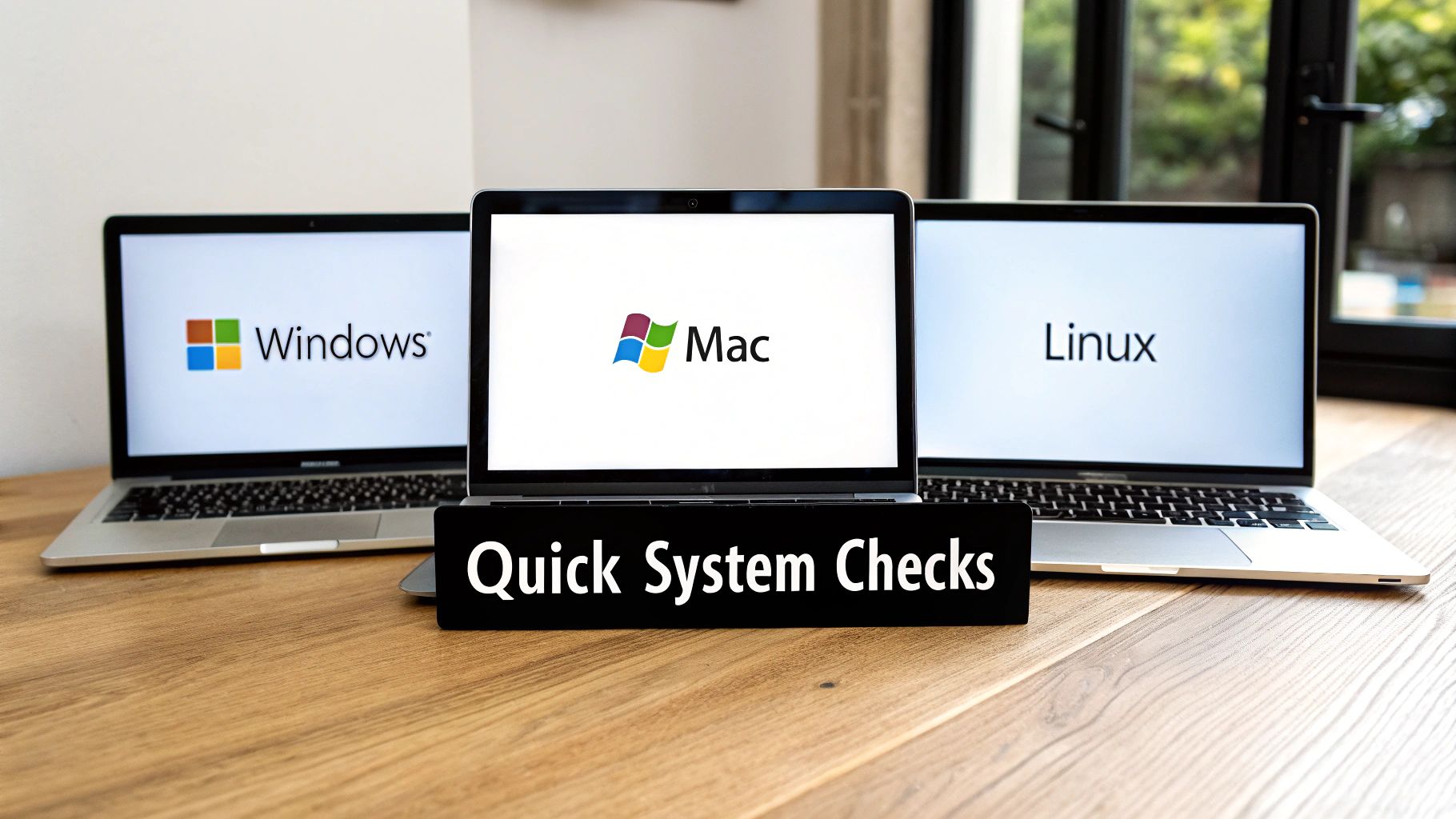
Sometimes you just need a fast answer. Before you start flipping over desktops or squinting at tiny serial numbers, your computer’s own operating system can give you a surprisingly good age estimate in just a few clicks.
These software-based methods are the quickest way to find out how old your computer is, giving you a solid baseline for any IT audit. Keep in mind, these dates often show when the OS was installed—not necessarily the hardware's manufacturing date—but they're invaluable for a first-pass assessment.
Finding the Age on a Windows PC
For anyone running Windows, one of the most reliable tools is already baked right into the system: the Command Prompt. It might look a little old-school, but it's incredibly straightforward for pulling up key system details.
Just open the Command Prompt and type systeminfo. After a moment, it’ll spit out a ton of information. You’re looking for a line called “Original Install Date,” which tells you exactly when that version of Windows was first set up on the machine.
Another powerful command is wmic bios get releasedate. This one queries the system's BIOS or UEFI firmware directly and pulls its release date. I find this date is often very close to the computer's actual manufacturing date, since manufacturers typically install the latest available BIOS when they assemble the PC.
Pro Tip: The "Original Install Date" can definitely be misleading if the OS has been reinstalled or upgraded. The BIOS release date, however, is a much more stable indicator of the hardware's true age because it's rarely updated.
Checking the Age on a Mac
When it comes to this, Apple makes things exceptionally easy. The model year is usually displayed right in the system information, giving you an immediate idea of its hardware generation.
Here’s the simple process:
- Click the Apple icon in the top-left corner of your screen.
- Select “About This Mac” from the dropdown menu.
- A window will pop up showing your Mac’s model and year (e.g., "MacBook Pro (13-inch, 2020)").
Honestly, that model year is often all you need. If you want a more precise manufacturing date, just use the serial number found in that same "About This Mac" window. Copy it and pop it into Apple’s Check Coverage page to see the original purchase date and warranty details.
Discovering the Age on Linux
Linux is known for its powerful command-line tools, and finding a computer's age is no exception. One of the most effective commands for digging into hardware details is dmidecode. This tool reads the system's DMI (Desktop Management Interface) data, which is a goldmine of information about the hardware components.
Open a terminal window and run sudo dmidecode -s bios-release-date. This command directly outputs the release date of the system’s BIOS. Just like on Windows, this is a strong indicator of the machine's manufacturing timeframe. It's a simple, direct command that cuts through the noise to give you a specific date.
Here's a quick reference table to help you remember these commands for your next IT audit.
Quick Age-Check Commands by Operating System
| Operating System | Command or Tool | What It Tells You |
|---|---|---|
| Windows | systeminfo |
The original OS installation date. |
| Windows | wmic bios get releasedate |
The BIOS/UEFI firmware release date, a great proxy for hardware age. |
| macOS | About This Mac | The Mac's model name and year of release. |
| Linux | sudo dmidecode -s bios-release-date |
The BIOS release date, indicating the hardware manufacturing period. |
These commands are a great starting point for any asset inventory. They're fast, easy, and require no special software.
Once you have a better idea of a machine's age and decide it's time for retirement, it's absolutely critical to handle its disposal correctly. To learn about the essential security steps, check out our guide on how to wipe a computer before recycling to ensure your company's sensitive data remains protected.
Uncovering the True Age with Hardware Checks
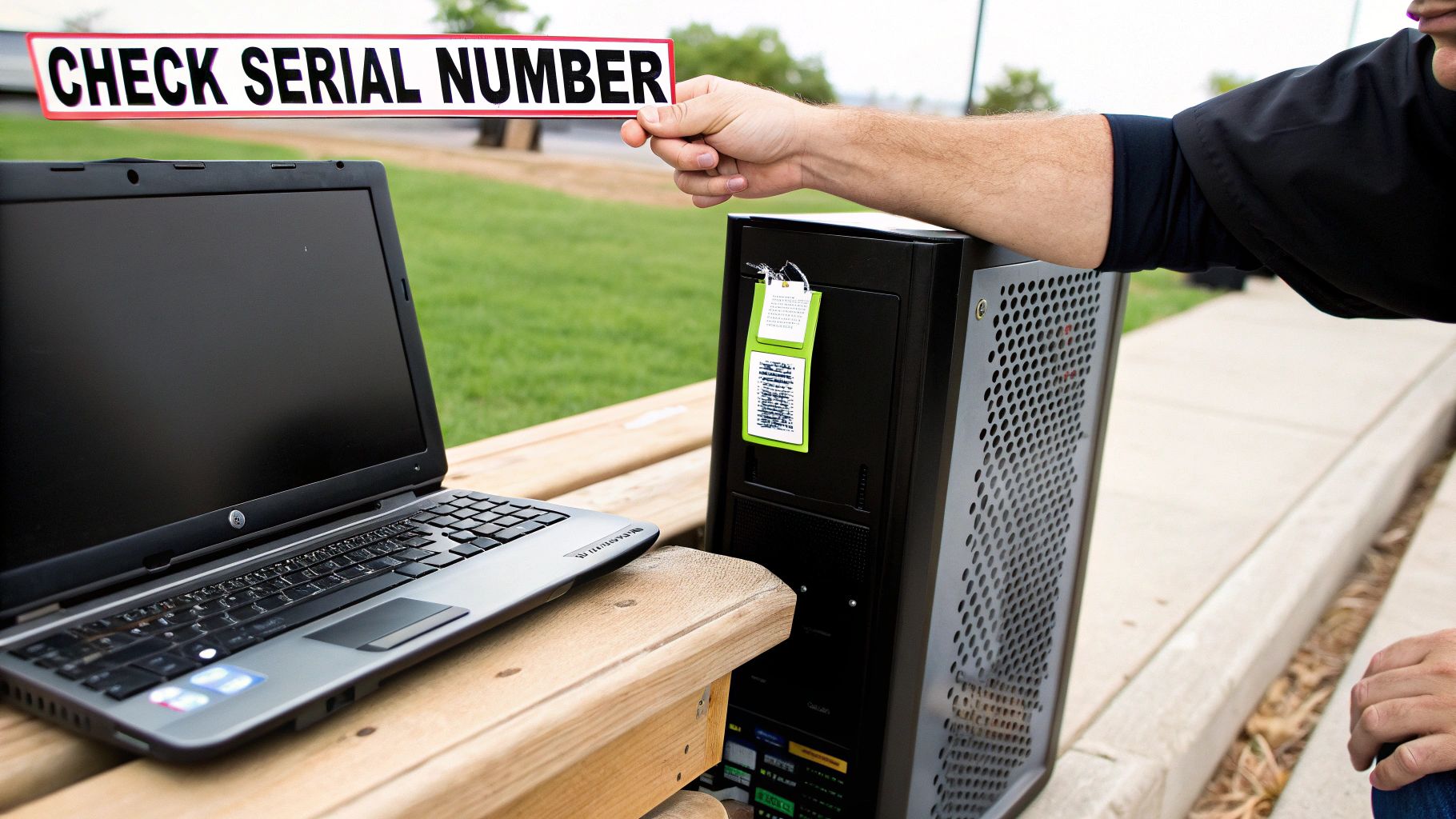
While software commands give you a quick first look, they can be incredibly misleading. An operating system might have been reinstalled, upgraded, or wiped clean half a dozen times over the years. This means the "Original Install Date" you see could be from last Tuesday, not from when the machine was actually built.
To get the real story and find out how old your computer is, you have to roll up your sleeves and become a bit of a hardware detective. The definitive proof is physically etched onto the machine and logged by the company that made it. This is the ground truth, especially when you're managing a whole fleet of computers with mixed-up software histories.
Locate the Manufacturer Service Tag or Serial Number
First things first: do a quick physical inspection. Every major manufacturer—Dell, HP, Lenovo, you name it—puts a sticker or plate on their machines with a unique identifier. This is your golden ticket.
- On Desktops: Look on the back, top, or sides of the PC tower. You're searching for a small sticker, usually with a barcode and a string of characters labeled "Serial Number (S/N)," "Service Tag," or "Product ID."
- On Laptops: Just flip it over. The info is almost always on the bottom case. On some older models with removable batteries, you might find the sticker hiding underneath.
- On All-in-Ones: Check the back of the monitor housing or somewhere on the stand. They often tuck it away discreetly to keep the design looking clean.
This single number is the key that unlocks the device's entire history, straight from the source.
Use Official Manufacturer Lookup Tools
Once you've got that serial number or service tag, head over to the manufacturer’s official support website. All the big players like Dell, HP, Lenovo, and Apple have robust online portals built for exactly this purpose.
Find their support or warranty check page and plug in the number you found. The site will pull up the original system specs, warranty details, and—most importantly—the shipment or manufacturing date. This is the computer's real birthday.
This is the kind of result you'd expect to see. It’s a simple process that provides definitive information.
This method is universally reliable and should be your go-to for any formal IT audit or inventory check. The manufacturer's date cuts right through any confusion from software changes and gives you an unchangeable record.
Check the BIOS or UEFI Date
Here's another trick that's nearly as reliable. You can check the date baked into the BIOS (Basic Input/Output System) or UEFI (Unified Extensible Firmware Interface). This is the base-level software that fires up your computer's hardware before Windows or macOS even starts to load.
To get in, restart the computer and watch for a prompt during the initial boot screen. You’ll need to press a specific key—usually F2, F10, or DEL—to enter the setup utility. Once you're in, look for a "Main" or "System Information" screen. You'll typically find a "BIOS Version" or "BIOS Date" listed, which is almost always from the year the computer was made. This date is rarely updated, making it a fantastic clue to the hardware's true age.
After you've pinned down a computer's age and decided it's time for retirement, figuring out what to do with an old desktop computer is the next critical step for secure, responsible disposal.
Okay, you've managed to pull some dates from your machine. Now for the tricky part: what do they actually mean?
It's a classic IT scenario. You check a computer and see a fresh Windows install date from last year, but a little more digging reveals the hardware is actually pushing seven years old. Understanding this difference is probably the single most important lesson in figuring out the true age of your computer.
The OS install date is just a software timestamp. It tells you when the current copy of Windows, macOS, or whatever Linux distro you're running was last set up. This date gets wiped and rewritten every single time you reinstall the OS, run a system refresh, or sometimes even after a major version upgrade.
The hardware manufacturing date, on the other hand, is set in stone. Think of it as the computer's physical birth certificate. It never changes. This is the real age of the guts inside your machine—the motherboard, the CPU, and all the other bits and pieces that degrade over time.
Why This Spells Trouble for IT Management
A fresh OS install can definitely make an old computer feel snappy again, but let's be honest, it’s like putting a fresh coat of paint on a vintage car. The engine underneath is still the same age. If you only look at the software install date, you're setting your organization up for a nasty surprise.
Picture an office manager glancing at a fleet of PCs, all showing a 2023 OS install date. They might feel confident pushing off the budget for new equipment, thinking everything is modern. The reality? If that hardware is from 2016, those machines are ticking time bombs, far more likely to fail when you least expect it.
- Component Wear and Tear: Physical parts have a shelf life. Fans get clogged, hard drive motors burn out, and capacitors fail. An OS reinstall does absolutely nothing to turn back that clock.
- Performance Bottlenecks: An old CPU and motherboard can't keep up with the demands of modern software, creating slowdowns that no software tweak can ever truly fix.
- Looming Security Risks: Eventually, manufacturers just stop releasing firmware updates for old hardware. This can leave gaping security holes that even the most up-to-date operating system can't patch.
When it comes to proper asset management and smart planning, the hardware manufacturing date is the only number that really counts. It dictates the device's actual lifecycle, from its performance ceiling to its inevitable retirement date.
Ignoring this leads to chaos: unexpected hardware failures, frustrating downtime, and panicked, overpriced emergency purchases. By focusing on the hardware's real age, you can make informed decisions based on a machine’s actual condition, not just its last software update. It's the kind of proactive thinking that keeps a modern IT environment reliable, secure, and running smoothly.
What to Do After You Find Your Computer's Age
So you’ve figured out how old your hardware is. Now what? Knowing a computer’s age isn't just about satisfying curiosity; it's the starting block for a smart, forward-thinking IT asset management plan.
This is where you shift from reacting to fires to strategically planning for upgrades, replacements, and secure disposal. That simple date you found is actually a powerful business tool, giving you a clear roadmap for how to allocate your budget and keep surprise downtime to a minimum.
Create a Tiered Action Plan Based on Age
I find it helps to think of your IT assets in distinct age brackets. Each tier has its own playbook, which takes all the guesswork out of maintenance and retirement decisions.
-
Under 3 Years Old: These are your workhorses, right in their prime. The focus here is simple: routine software maintenance and keeping security updates on schedule. You shouldn’t need to spend any money on hardware unless a user has some seriously specialized performance needs.
-
3 to 5 Years Old: This is the upgrade window. As software gets hungrier for resources, these computers can start to feel a bit sluggish. A cost-effective RAM upgrade or, even better, swapping an old mechanical hard drive for a zippy Solid-State Drive (SSD) can breathe new life into them for another couple of years.
-
5 to 7 Years Old: Now you need to start planning for replacement. These machines might still be chugging along, but their performance is likely lagging, and the risk of hardware failure starts creeping up. It’s time to earmark funds in your next budget cycle to replace them. If your system is old but critical, you could look into incremental legacy modernization strategies to extend its life and boost efficiency.
-
7+ Years Old: Honestly, these devices are liabilities. They often can’t run the latest, most secure operating systems and are ticking time bombs for failure. Immediate retirement is the safest and most cost-effective move to protect your data and keep everyone productive.
This decision tree gives you a visual on the key difference between a software install date and the hardware's manufacturing date, helping guide your next steps.
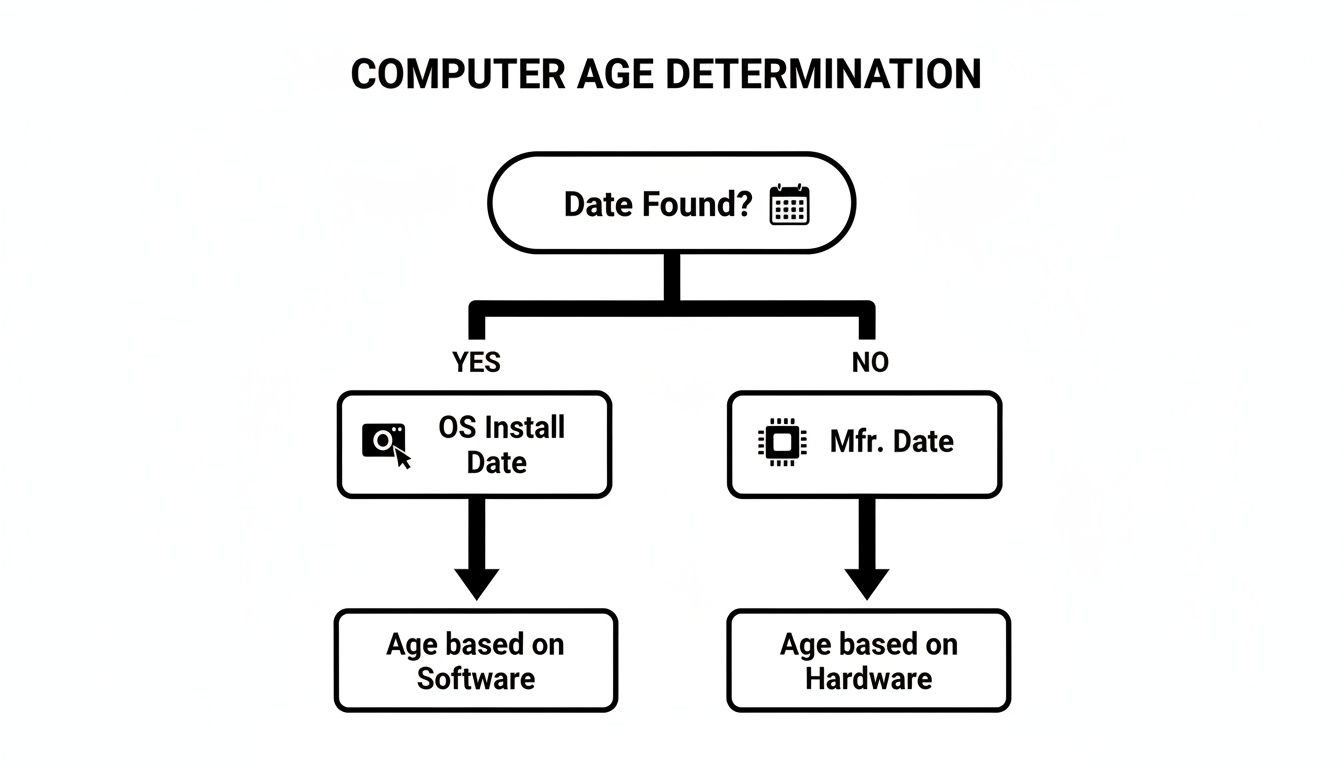
As the chart shows, while the OS install date is a handy clue, the manufacturer's date is what you should rely on for making those big hardware decisions.
Implement Asset Tagging and a Retirement Schedule
Once you've sorted your devices into these age groups, it’s time to get organized. Asset tagging is a must. This just means applying a unique ID sticker to each machine and logging its age, specs, and assigned user in a central spreadsheet. Do this, and you’ll have a complete, at-a-glance overview of your entire IT fleet.
With that inventory in hand, you can build out a retirement schedule. Knowing that you have five machines hitting the seven-year mark next year lets you plan your budget and workflow logically. It’s a lot better than the chaos of multiple unexpected failures hitting you all at once.
Figuring out your computer's age is a wake-up call for responsible IT management. Globally, e-waste is projected to hit over 60 million metric tons in 2025, yet only 22.3% was properly recycled in 2022. For businesses, outdated hardware isn’t just slow—it poses serious data breach risks and compliance headaches.
Finally, secure data destruction is absolutely non-negotiable. Before any device leaves your possession, its data must be professionally wiped or the drive must be physically destroyed. This is your best defense against a devastating data breach.
Once a computer is retired and securely wiped, you can look into environmentally friendly recycling options or even recover a bit of its value. For some practical advice on this, you can learn more about https://www.montclaircrew.com/where-to-sell-my-laptop/ responsibly.
Common Questions About Computer Age and Recycling
So, you’ve figured out how old your computer is. Now what? That’s where the real work begins. Knowing the age is one thing, but turning that information into a smart business decision is what really matters. Let's walk through some of the most common questions that pop up after an IT audit.
This is the point where data becomes strategy—deciding whether to upgrade, replace, or responsibly recycle your company's old machines.
Is It Worth Upgrading a Computer Over Five Years Old?
This is the million-dollar question, and the answer almost always boils down to a simple cost-benefit analysis. For a computer that’s already hit the five-year mark, throwing money at upgrades like more RAM or a new SSD can feel like an easy win. But you’re still stuck with an aging motherboard, an outdated CPU, and a power supply that’s seen better days.
Think about it like this: a $150 upgrade might squeeze another year of life out of the machine. But if a brand-new computer with a full warranty costs $600 and will reliably last five years, the long-term value is obvious. For most business tasks, any machine over five years old is a poor candidate for major upgrades. The smarter move is to start planning for its replacement.
Upgrading old hardware often provides diminishing returns. You're putting new parts into a system where other components are nearing the end of their lifecycle, increasing the risk of unexpected failure and downtime.
What Is the Most Secure Way to Dispose of an Old Business Computer?
Getting rid of old business computers demands a serious focus on data security. Don’t make the mistake of thinking a simple file deletion or a quick drive reformat is enough. Data recovery software can easily pull sensitive information off drives that haven't been professionally wiped, leaving your business wide open to a data breach.
The only truly secure methods involve professional data destruction. Your best options are:
- Data Wiping: This involves using specialized software to overwrite the entire hard drive with random data, over and over again. This process, often following standards like DoD 5220.22-M, makes the original information completely unrecoverable.
- Physical Destruction: For the ultimate level of security, nothing beats physically shredding the hard drive into tiny pieces. It’s a guaranteed way to ensure that data can never be accessed again.
The best way to handle this is to work with a certified IT asset disposition (ITAD) partner. They have the tools and expertise to do it right. For a complete rundown of your choices, our guide explains how to dispose of old computers safely while keeping your business compliant.
How Does Recycling Old Computers Help Environmental Goals?
Properly recycling old computers is a direct, tangible way to support your company’s environmental and corporate social responsibility (CSR) initiatives. Electronics are full of hazardous materials like lead, mercury, and cadmium. If that stuff ends up in a landfill, it can contaminate the soil and groundwater for years.
When you partner with a certified e-waste recycler, you’re not just preventing pollution. You’re also helping recover valuable resources like gold, silver, copper, and aluminum that can be reused, which cuts down on the need for destructive mining operations. It's a powerful statement about your company's commitment to sustainability and a win for the environment.
At Montclair Crew Recycling, we specialize in helping Metro Atlanta businesses manage their IT assets securely and responsibly. From certified data destruction to environmentally compliant recycling, we provide a complete solution for your old computers. Contact us today to learn how we can help you protect your data and meet your sustainability goals. Find out more at https://www.montclaircrew.com.
