

Figuring out your computer's age is more than just satisfying a bit of curiosity; it's a critical piece of the puzzle for managing your digital life. When you know how old your computer is, you're better equipped to decide if it's worth upgrading, figure out a fair resale value, or plan for a replacement before it dies at the worst possible moment.
Why Your Computer's Age Actually Matters
It's all too easy to ignore your computer's age until the day its performance starts to tank. That machine that was once lightning-fast now struggles to open modern software, or the battery barely makes it through a single meeting. Knowing its age gives you crucial context. Is it slowing down because the parts are just old, or is this a software issue you can fix?
Honestly, knowing your PC's age helps you make smarter decisions all around:
- Software and OS Updates: An older machine might not have the hardware chops for the latest operating system. Trying to force an update could be a risky move.
- Hardware Upgrades: You can figure out if it's cheaper to pop in more RAM or a new SSD versus buying a whole new computer. A five-year-old laptop might get a new lease on life with an SSD, but you're probably wasting money on a ten-year-old model.
- Security Concerns: Old hardware sometimes stops getting essential firmware updates from the manufacturer. That can leave your machine wide open to security threats.
- Resale and Recycling: Getting the date right helps you set a fair price when you sell it. And when it’s finally time to retire the device, proper planning is key. The lifecycle of your hardware is directly connected to the bigger picture of the environmental impact of electronic waste.
For any business, tracking device age is a fundamental part of conducting an asset survey. It’s how you manage hardware lifecycles and budget effectively. This one simple data point can help forecast replacement costs and prevent productivity from grinding to a halt because of an unexpected hardware failure.
Finding Your PC's Age on Any Windows System
If you're running a Windows PC, there are a few solid ways to figure out your computer's real age. The most direct route is to check your system's core hardware information, which gets you a date very close to when your machine was actually built. This is the best place to start if you're trying to tell how old your computer is.
You can get this info using a built-in tool called System Information. Don't worry, it's not nearly as technical as it sounds. Just press the Windows key + R on your keyboard, type msinfo32 into the run box, and hit Enter. A window will pop up, packed with details about your PC.
Checking the BIOS Date
Inside the System Information window, scan down the list until you find an item called BIOS Version/Date. The date you see there is when the motherboard's firmware was created.
Since the BIOS (or UEFI, on newer computers) is one of the first things loaded onto the motherboard, this date is a super accurate indicator of when your hardware was manufactured. It's usually just a few weeks before the computer was fully assembled and ready for sale.
Key Takeaway: The BIOS or UEFI date is arguably the most reliable indicator of your hardware's true age. It predates any software installation and isn't affected by system resets or OS upgrades, giving you a clear picture of when the core components were made.
Another clue you can look for is the Original Install Date of Windows. While this doesn't tell you the hardware's age, it does tell you when the operating system was first installed. You can find this by opening Command Prompt and typing systeminfo | find "Original Install Date". This is great for figuring out when you started using a new PC or when you last did a major software overhaul.
To give you a better idea of which method works best for what, here's a quick comparison.
Windows Methods for Checking Computer Age
This table breaks down the common ways to find your Windows PC's age, so you can pick the one that fits your needs.
| Method | What It Tells You | Accuracy Level | Best For |
|---|---|---|---|
BIOS Date (msinfo32) |
The manufacturing date of the motherboard's firmware. | Very High | Determining the true hardware age of the computer. |
OS Install Date (systeminfo) |
When the current version of Windows was first installed. | Low | Knowing how long the current software setup has been in use. |
| Physical Sticker/Serial # | The exact manufacture date or model year. | High | Quick lookups, especially if you have the original packaging. |
| CPU Release Date | The age of the processor. | Medium | Getting a general idea of the PC's generation if other methods fail. |
Ultimately, the BIOS date is your most reliable bet for the hardware's age, while the OS install date is more about its software history.
This handy decision tree can help you figure out what to do once you know how old your PC is—whether it's time for a simple software update, a hardware upgrade, or a full replacement.
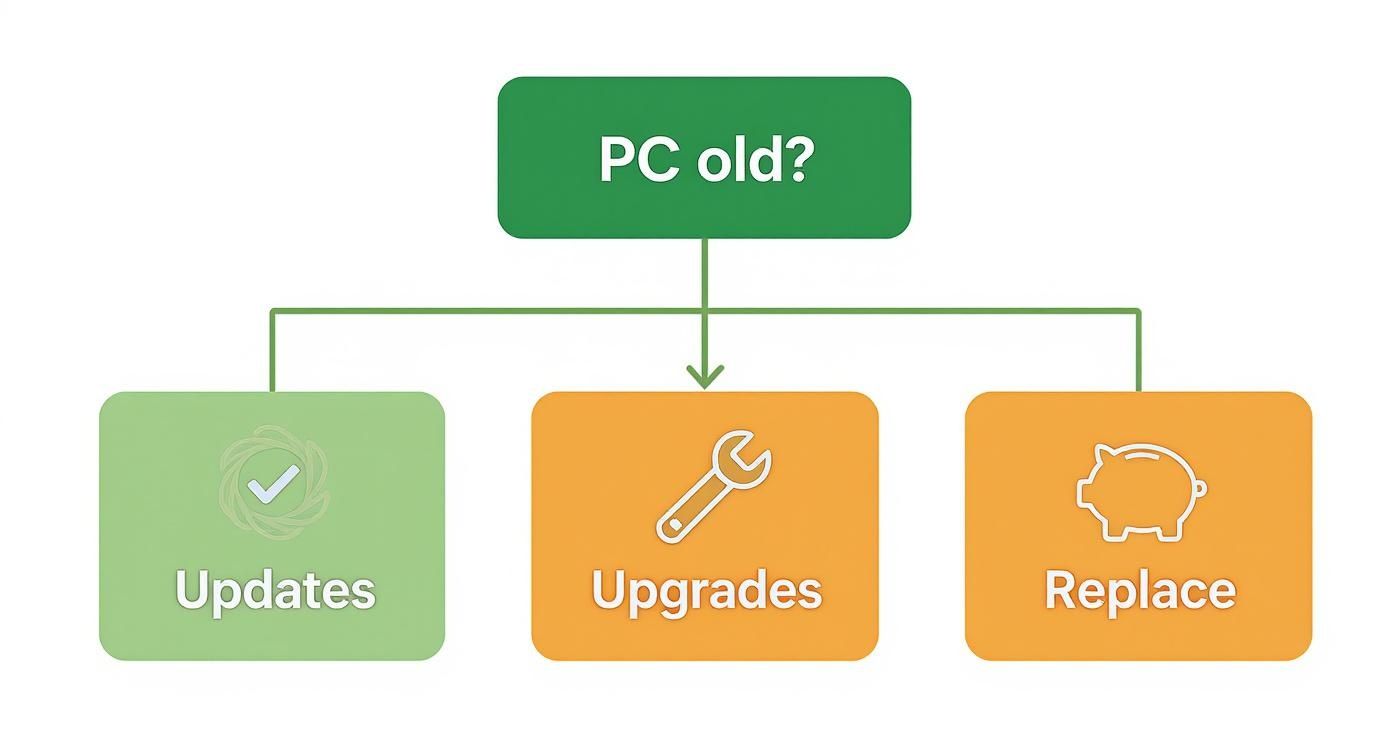
As the visual shows, an older PC doesn't automatically mean it's destined for the scrap heap. Sometimes a simple software cleanup or a new component is all it needs.
If you do decide it's time to retire your old machine, make sure you do it responsibly. Before getting rid of it, you'll want to read up on how to wipe a computer before recycling to keep your personal data safe.
How to Check a Mac's Age and Model Year
Apple makes finding your Mac’s age and model year remarkably straightforward, integrating this information right into macOS. Unlike the PC world where you sometimes have to play detective, figuring out your Mac's vintage is usually just a few clicks away.
The quickest route is the About This Mac window. Just click the Apple logo in the top-left corner of your screen and select "About This Mac." The window that pops up shows your Mac's model name and, most importantly, its release year, like "MacBook Pro (15-inch, 2018)." This model year tells you when that specific generation first hit the market.

Getting More Precise with the Serial Number
For a more detailed history, your Mac's serial number is the golden ticket. You can find this unique identifier in the same "About This Mac" window.
Once you copy the serial number, head over to Apple's official Check Coverage website. Pasting your serial number there will confirm the model and often provide a more specific manufacturing timeline—it's the most accurate way to learn when your Mac model was introduced. Knowing these unique identifiers is essential for Apple devices; you can even learn how to retrieve device identifiers like the IMEI number on your iPhone for similar purposes.
Pro Tip: Your Mac's serial number often contains encoded manufacturing data. The third character typically represents the final digit of the manufacturing year, while the fourth and fifth characters indicate the week of that year. For example, a serial number starting with "C02V4" suggests the Mac was made in the 4th week of 2017.
Knowing the precise age of your Mac isn't just for curiosity's sake. It directly impacts decisions about software compatibility, performance expectations, and its potential resale or trade-in value.
If you discover your machine is getting on in years, it’s a good time to start thinking about what's next. For older models that have served their time, you can explore options to https://www.montclaircrew.com/recycle-imac/ responsibly.
Finding Your PC’s Age in a Linux Environment
If you're a Linux user, you already know the command line is the fastest way to get things done. While there are graphical tools you could hunt down, a quick terminal command will tell you exactly how old your computer is in just a few seconds.
The most straightforward method is to check the BIOS release date. Think of it as your computer's birth certificate—it’s an excellent proxy for the machine's actual manufacturing date.
Using the dmidecode Command
The tool for the job is dmidecode. It’s a powerful utility that pulls information from your system's DMI (Desktop Management Interface) table, which is basically a catalog of all your hardware components.
First, pop open your terminal. You'll need superuser privileges for this, so be ready to use sudo. The full output from dmidecode is massive, so you’ll want to filter it to get right to the good stuff.
Run this specific command to pull only the BIOS info and find the release date:
sudo dmidecode -t bios | grep "Release Date"
The command will spit out a single, clean line that looks something like Release Date: 08/23/2021. This date tells you when the motherboard’s core firmware was locked in, a step that almost always happens right before the PC is assembled. It's a remarkably accurate way to determine your hardware's age.
This BIOS date is incredibly handy, especially when you're assessing older equipment. For instance, if you're taking inventory and figuring out when to decommission a server, this command gives you a precise data point for your asset logs. No guesswork involved.
Mastering this simple command gives you a fast and efficient way to verify any computer's age with total confidence.
Sometimes, the best way to figure out how old your computer is requires getting your hands a little dirty. While software tricks are convenient, they're useless if the machine won't even power on. For dead computers or custom-built rigs, the hardware itself tells the real story.
Your first move should be a simple physical inspection.
Flip your laptop over or check the back and sides of your desktop case. You're hunting for a sticker—most manufacturers put one there with all the critical details. Look for a serial number, model number, or if you're lucky, a plain-english "manufacture date" (often shortened to MFD). This little label is gold.
Reading the Clues on Labels and Components
Once you've got a serial number, a quick search on the manufacturer's support website will usually pull up the exact production specs. For older machines where software might not work properly, this is easily the most accurate method you can use. Think of it like a car's VIN number; it tells you everything about when and where your PC was born.
If the sticker is missing or unreadable, don't worry. The components themselves can give you a pretty good idea of the PC's age. The ports are a dead giveaway. For example, a computer loaded with only VGA and old-school round PS/2 ports for the keyboard and mouse is a fossil from the mid-2000s or earlier. On the other hand, seeing modern USB-C and Thunderbolt ports means you're looking at a much newer machine.
Key Takeaway: The physical parts and labels on your computer provide an undeniable timeline. You can trace a specific CPU model back to its release year, and legacy ports like VGA are clear signposts of an older generation. When software methods fail you, this hardware-first approach is foolproof.
Knowing a bit about tech history also helps add context. The invention of the transistor back in the 1940s was a monumental step that paved the way for the smaller, more powerful computers we have today. If your machine uses integrated circuits, you know it belongs to the second half of the 20th century at the earliest. You can dig deeper into these kinds of breakthroughs by exploring hardware milestones throughout history.
Frequently Asked Questions About Computer Age
Even with the right methods, a few common questions always seem to pop up when you're trying to figure out just how old a computer is. Let's tackle some of the most frequent ones to make sure you get the real story.
Is the BIOS Date the Same as the Manufacturing Date?
A lot of people wonder if the BIOS date is the actual manufacturing date. The short answer is no, but it's incredibly close.
The BIOS date tells you when the motherboard's firmware was finalized, a step that happens right before the PC is put together. This makes it one of the most reliable clues you can find for your hardware's true age. Think of it as a timestamp from the factory floor.
How Accurate Is the Windows Install Date?
This one's a bit tricky. The original Windows installation date can be a good starting point, but you can't always trust it to tell you the hardware's age. It only shows when the current version of Windows was put on the machine.
If you—or a previous owner—ever did a clean reinstall of the OS or performed a major system reset, that date gets wiped and updated. So, a computer from 2015 could easily show a Windows install date of 2022.
Pro Tip: What if the computer won't even turn on? You're not out of luck. Check the case for a manufacturer's sticker. This label often has a production date printed right on it, or at least a serial number you can look up on the manufacturer’s support website for all the details.
These dates matter because technology moves at lightning speed. Trends like Moore’s Law predicted that computing power would double roughly every two years, which is why we see a constant flood of new, more powerful hardware. For a deeper dive into computing history, StatCan offers some great insights.
Finally, remember that a computer's age is a big factor when you decide to sell or recycle it. Before you pass that old machine along, it's critical to understand what data sanitization is to make sure your private information doesn't fall into the wrong hands.
