

That old desktop computer sitting in the corner isn't just a relic of the past; it's a treasure trove of untapped potential. While it may no longer be your primary workhorse, dismissing older hardware overlooks a world of creative, practical, and sustainable opportunities. Instead of letting it contribute to the growing e-waste problem, you can transform it into something new and valuable. From building a powerful home media server to creating a retro gaming paradise, the possibilities are surprisingly vast and cost-effective.
This guide moves beyond generic advice and provides a curated roundup of ten innovative projects and responsible solutions for your aging machine. We will explore specific, actionable ideas including turning it into a dedicated security system monitor, a home automation hub, or even a blockchain node. Each option is presented with practical implementation details to help you get started immediately.
Learning what to do with an old desktop computer is about more than just decluttering. It is an opportunity to save money, learn new technical skills, and make an environmentally conscious choice. Let’s dive into ten ways you can unlock the hidden value in your old hardware and give it the second life it deserves.
1. Home Media Server/NAS
One of the best answers to the question of what to do with an old desktop computer is to transform it into a powerful home media server or Network Attached Storage (NAS) device. This approach centralizes your digital life, creating a single, reliable hub for all your movies, music, photos, and important documents. Instead of files being scattered across various devices, they become accessible from any phone, laptop, or smart TV connected to your home network.
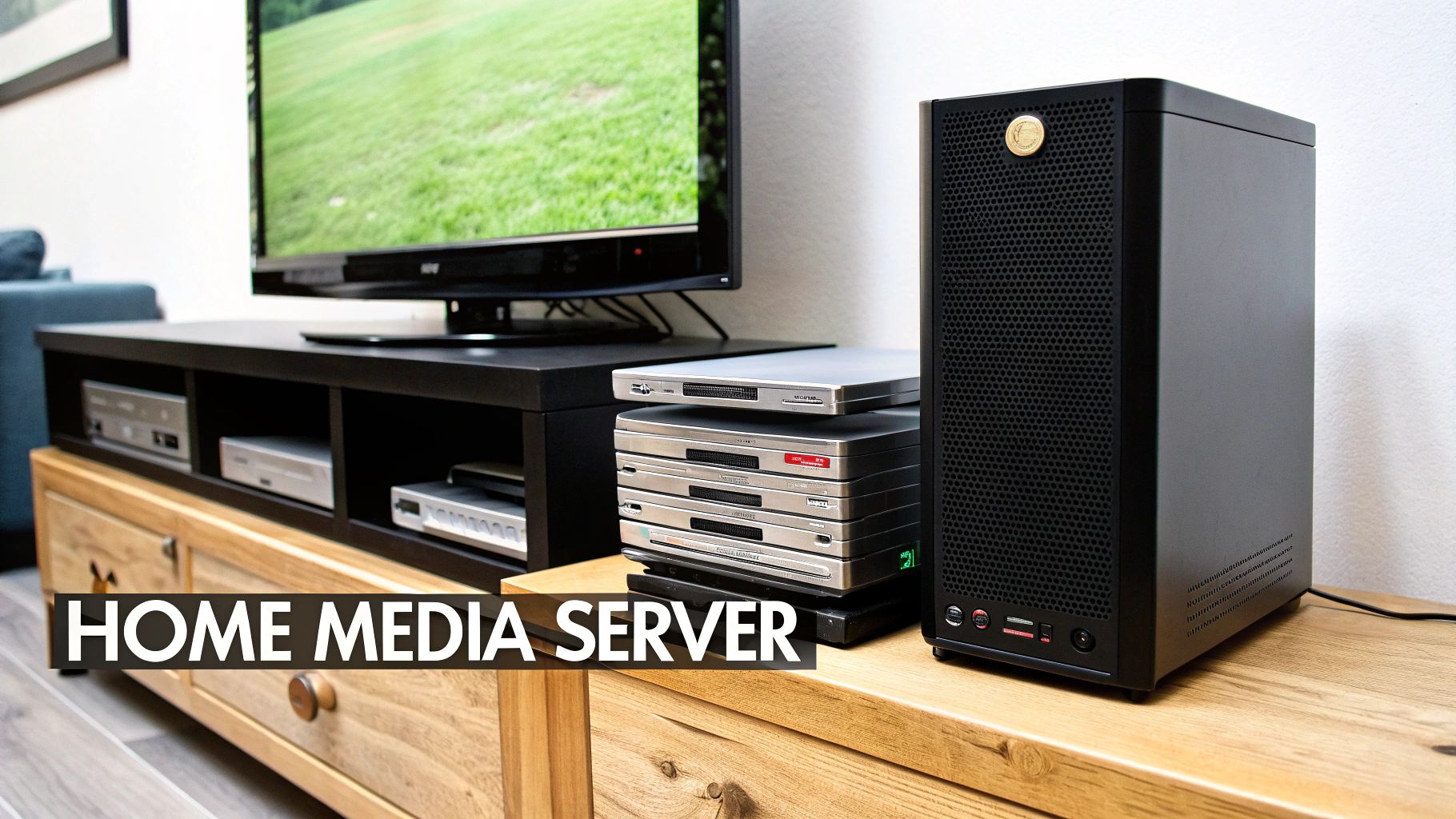
The core idea is to install specialized software that manages data storage and streaming. This turns your outdated hardware into a dedicated machine for serving files on demand, essentially creating a personal, private cloud that you control entirely.
Why This Is a Great Option
Even an older machine often has sufficient processing power for file management and media streaming, especially for high-definition content. While the age of the components might be a concern, you can find out how old your computer is to gauge its capabilities. This repurposing project extends the hardware's life, saving you from purchasing a commercial NAS unit which can cost hundreds of dollars.
Actionable Steps for Implementation
- Install a Lightweight OS: Replace Windows or macOS with a system designed for server tasks. Popular choices include Ubuntu Server (a lean Linux distribution) or TrueNAS CORE (formerly FreeNAS), a powerful open-source storage platform.
- Set Up Media Software: Use applications like Plex, Jellyfin, or Kodi to organize your media library with beautiful cover art and metadata. These services allow you to stream content seamlessly to various client devices.
- Expand and Protect Storage: Add multiple hard drives to increase capacity. Configure them in a RAID (Redundant Array of Independent Disks) setup for data protection, ensuring that a single drive failure won't erase your precious files.
2. Linux Workstation/Server
Another excellent way to approach the problem of what to do with an old desktop computer is to convert it into a dedicated Linux workstation or server. Because Linux is known for its efficiency and low system requirements, it can breathe new life into hardware that struggles to run modern versions of Windows or macOS. This turns an otherwise obsolete machine into a capable tool for everyday computing, software development, or hosting small web applications.
The central concept is to replace the existing power-hungry operating system with a lightweight Linux distribution. This provides a secure, stable, and highly customizable environment that can be tailored for specific tasks, from a simple browsing machine to a command-line-only server accessible from anywhere on your network.
Why This Is a Great Option
Older computers often lack the RAM and CPU power for modern operating systems, but they are more than sufficient for many Linux distributions. This project is a fantastic, no-cost way to learn about an alternative OS used by millions of developers and system administrators worldwide. Before you begin, it’s a good idea to completely clean the old system; you can find detailed guides on how to wipe a computer before recycling which also apply to repurposing.
Actionable Steps for Implementation
- Choose a Lightweight Distribution: For aging hardware, select a distribution designed for performance. Good options include Linux Mint, Xubuntu, or Lubuntu, all of which provide a familiar desktop experience with minimal resource usage.
- Install Essential Software: Use the built-in package manager (like
aptordnf) to easily install free software like the LibreOffice suite, GIMP for photo editing, or programming tools like VS Code. - Enable Remote Access: Install an SSH (Secure Shell) server to manage your computer remotely from another device. This is particularly useful if you decide to run it as a "headless" server without a monitor attached.
3. Retro Gaming Station
Another fantastic answer to the question of what to do with an old desktop computer is to turn it into a dedicated retro gaming station. This project resurrects your hardware to run classic games from legendary consoles like the NES, Sega Genesis, PlayStation, and countless arcade machines, creating an all-in-one hub for nostalgic entertainment.
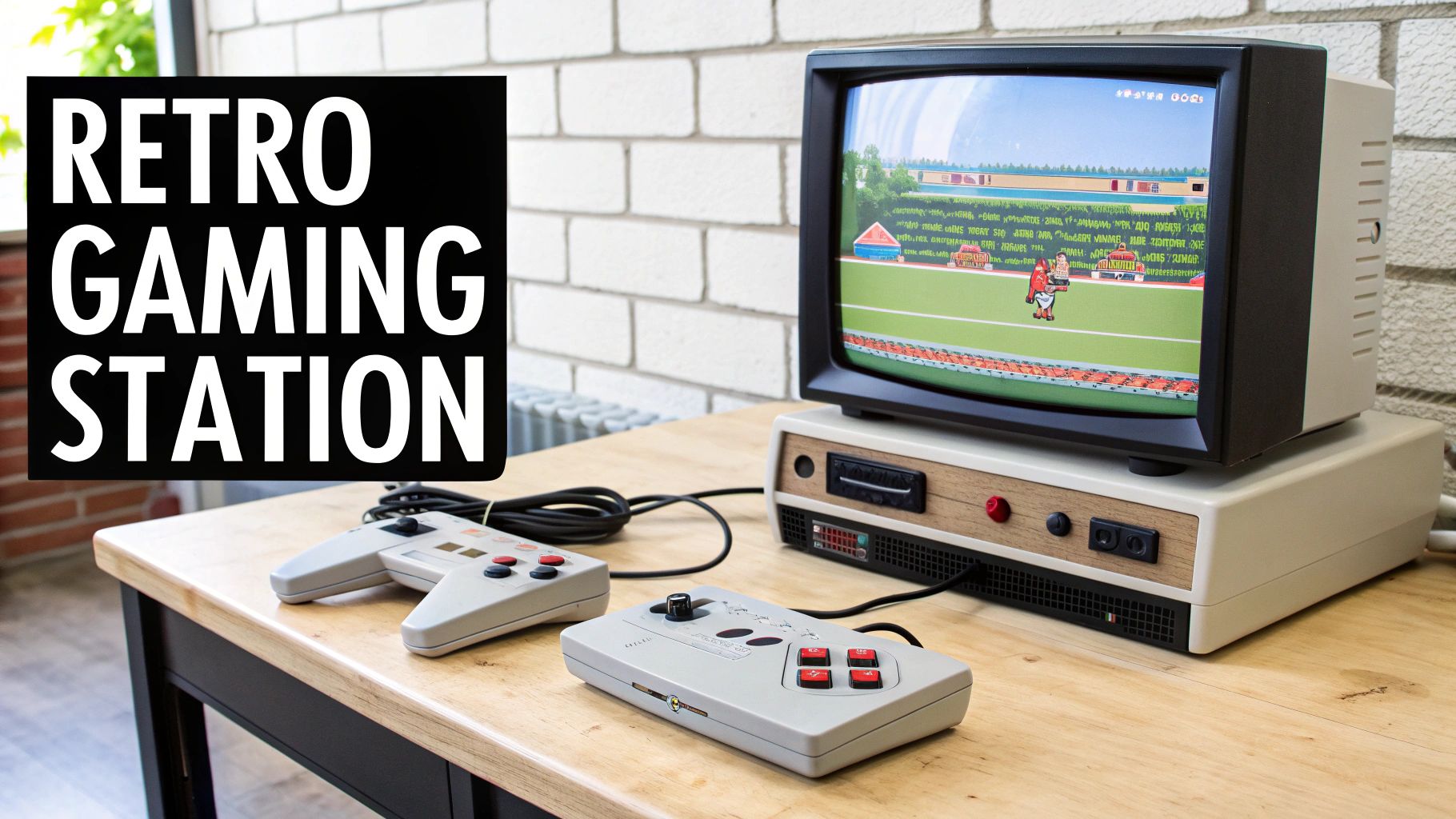
The core concept involves installing specialized emulation software that mimics the original console hardware, allowing you to play game files (ROMs) on your PC. This transforms an otherwise obsolete machine into a powerful and versatile classic gaming console.
Why This Is a Great Option
Even a decade-old desktop has more than enough power to emulate consoles from the 8-bit, 16-bit, and even 32/64-bit eras flawlessly. The low system requirements make this a perfect use for machines that can no longer handle modern tasks. Instead of recycling it, you get an endlessly entertaining device. If your computer is too outdated even for this project, you can always explore options for donating old computers to a worthy cause.
Actionable Steps for Implementation
- Install an Emulation-Focused OS: For a streamlined, console-like experience, install a distribution like Batocera.linux or Lakka. These operating systems boot directly into a user-friendly gaming interface, simplifying setup.
- Source Your Games: Obtain ROMs for the games you wish to play. It is important to only use ROMs of games you legally own or those that are in the public domain to respect copyright laws.
- Configure Controllers and Display: Connect USB or Bluetooth gamepads for an authentic feel. For the ultimate setup, connect the desktop to a large TV via HDMI to replicate the classic living room gaming experience.
4. Dedicated Security System Monitor
Another practical answer to the question of what to do with an old desktop computer is to convert it into a dedicated hub for a home security system. This project turns your obsolete hardware into a centralized command center for monitoring security cameras, smart doorbells, and other IoT devices, giving you a powerful, private surveillance solution without the monthly fees of many commercial services.
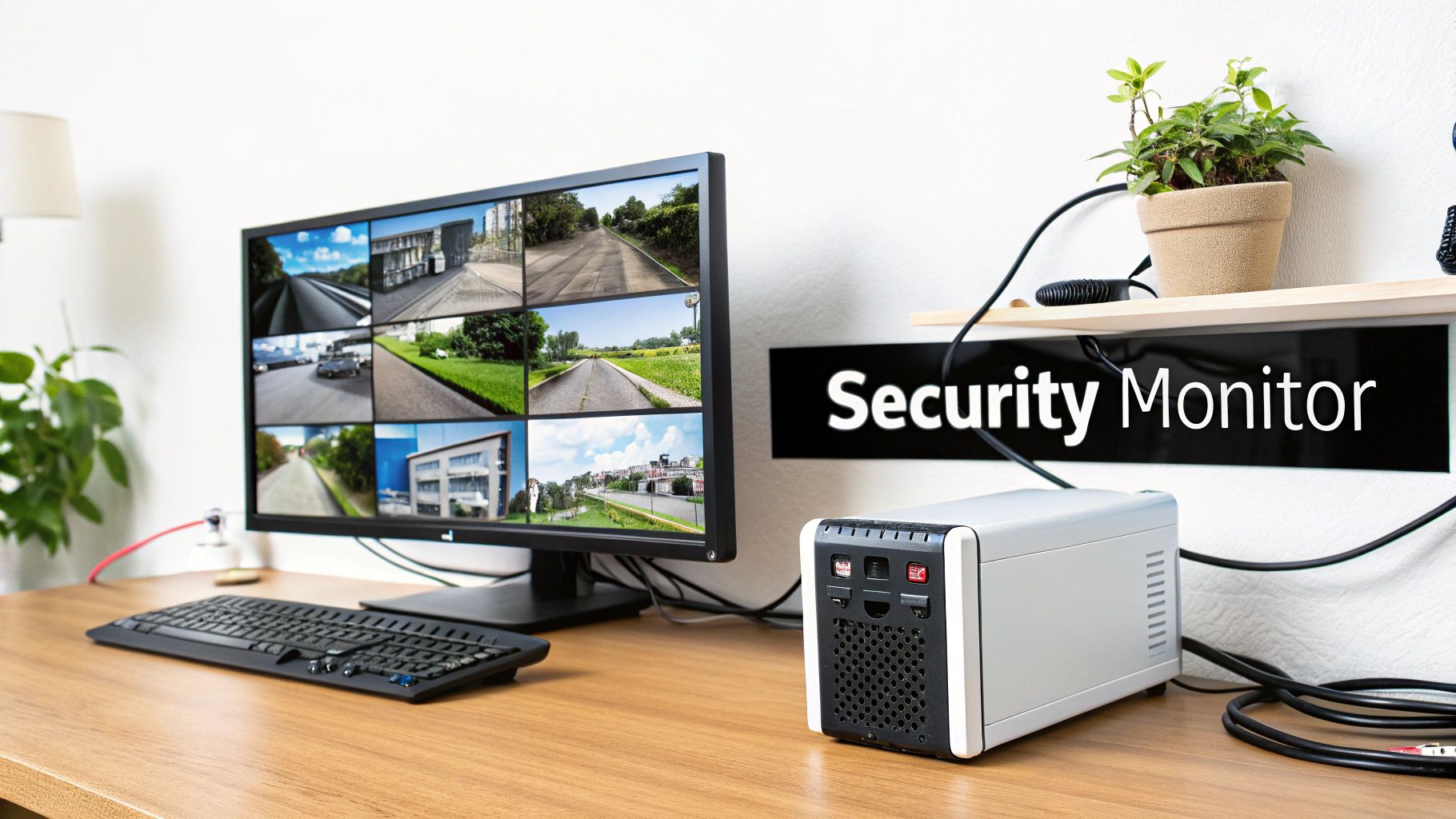
The basic concept is to install specialized Network Video Recorder (NVR) software that records, analyzes, and stores video feeds from your IP cameras. Your old desktop becomes the brain of the operation, managing all the data and providing you with a single interface to view live feeds and review recorded events from anywhere.
Why This Is a Great Option
An older desktop often has more than enough processing power and storage connectivity to manage multiple high-definition camera streams. This approach offers significant cost savings and customization. For those looking to save money and customize their protection, an old desktop can be the core of a system when you decide to build your own DIY home security system. You gain complete control over your data, avoiding third-party cloud storage and associated privacy concerns.
Actionable Steps for Implementation
- Install NVR Software: Choose a platform that fits your technical skill level. Blue Iris is a popular, feature-rich option for Windows users, while Frigate offers powerful AI-driven object detection. For an open-source alternative, consider Zoneminder.
- Connect Your Cameras: Integrate your existing IP cameras with the software. Using Power over Ethernet (PoE) cameras simplifies wiring by running both power and data through a single ethernet cable, reducing clutter.
- Ensure Continuous Operation: Connect the computer to an Uninterruptible Power Supply (UPS) to keep your security system running during a power outage. For redundancy, configure the system to back up critical footage to an external hard drive or a separate network location.
5. Home Automation Hub
Another powerful answer to the question of what to do with an old desktop computer is to convert it into a dedicated home automation hub. This project puts your old machine at the center of your smart home ecosystem, acting as the brain that controls and orchestrates all your connected devices like smart lights, thermostats, locks, and sensors. Instead of relying on various separate apps and cloud services, you can create a unified, private, and highly customizable control system.
The idea is to install open-source automation software that communicates with your IoT devices locally. This turns your computer into a powerful, always-on server that can run complex automations, such as turning on lights when you arrive home or adjusting the thermostat based on the time of day, without depending on an internet connection.
Why This Is a Great Option
An old desktop computer often possesses more than enough processing power and memory to run sophisticated home automation platforms, far outperforming small, single-board computers like a Raspberry Pi. This approach gives you complete control over your data and device integrations, avoiding proprietary ecosystems and subscription fees. Plus, if you plan to manage your smart home from anywhere, you will find it beneficial to set up secure Home Assistant remote access on your powerful new hub.
Actionable Steps for Implementation
- Choose an Automation Platform: Install a dedicated home automation system. Home Assistant is highly recommended for its user-friendly interface and vast community support. Alternatives like OpenHAB or Node-RED offer different levels of customization.
- Add Communication Hardware: Equip the PC with USB adapters to communicate with your smart devices. The most common are Z-Wave and Zigbee sticks, which allow you to connect to a wide range of sensors, lights, and switches directly.
- Create Powerful Automations: Start by building simple routines, like turning off all lights at bedtime. Gradually move to more complex logic using the platform’s automation editor or YAML configuration for advanced scenarios that cater to your specific lifestyle.
6. Bitcoin/Blockchain Node
Another forward-thinking answer to the question of what to do with an old desktop computer is to convert it into a full Bitcoin or blockchain node. This project turns your aging hardware into an active participant in a decentralized network, helping to validate transactions and secure the blockchain. Instead of relying on third-party services to interact with a cryptocurrency network, you run your own copy of the ledger, enhancing your privacy and sovereignty.
This process involves dedicating the computer to running specific software that continuously downloads, verifies, and stores the entire transaction history of a blockchain like Bitcoin or Ethereum. It becomes a peer in the network, contributing to its resilience and decentralization.
Why This Is a Great Option
Running a node is a task that often requires constant uptime but not necessarily cutting-edge processing power, making it ideal for an older but reliable desktop. This repurposing project is a fantastic way to support a decentralized ecosystem you believe in while learning about the technical foundations of cryptocurrencies. For some networks, running a node can even generate rewards, such as through Ethereum staking. Before you begin, ensure the machine is completely clean; you might want to learn how to securely wipe old hard drives to start with a fresh slate.
Actionable Steps for Implementation
- Choose a Blockchain and Install Node Software: For Bitcoin, the most common software is Bitcoin Core. For Ethereum, clients like Geth or Nethermind are popular choices. Download the official software from the project's website.
- Ensure Sufficient Storage and Power: A full Bitcoin node requires over 500GB of storage, so an SSD is highly recommended for faster synchronization. To ensure continuous operation, connect the computer to an Uninterruptible Power Supply (UPS).
- Configure Your Network: For optimal performance and to help the network more effectively, you will likely need to configure port forwarding on your router. This allows other nodes on the network to connect to yours.
- Monitor and Maintain: Keep a close eye on your internet bandwidth usage, as a node can be data-intensive. Regularly update the node software to the latest version to maintain security and compatibility with the network.
7. Development & Programming Machine
An excellent answer to the question of what to do with an old desktop computer is to repurpose it as a dedicated development and programming machine. This approach creates an isolated environment for coding projects, learning new languages, or testing software without cluttering or risking your primary computer. It becomes a personal lab for everything from web development to experimenting with open-source projects.
The main concept is to set up a clean, focused workstation tailored specifically for coding tasks. By dedicating the old hardware to this purpose, you can install specialized tools, compilers, and server environments freely, creating a sandboxed space that won’t interfere with your daily-use machine.
Why This Is a Great Option
Even an older desktop often has more than enough power for compiling code, running local servers, and using modern text editors or Integrated Development Environments (IDEs). This project is especially useful for computer science students, aspiring developers, or hobbyists who need a practice machine. It’s a cost-effective way to get a fully functional development setup without any new investment.
Actionable Steps for Implementation
- Install a Developer-Friendly OS: Replace the existing operating system with a Linux distribution like Ubuntu or Fedora. These systems offer native support for a vast range of programming languages and tools, including the command line, which is essential for modern development.
- Set Up Your Core Toolkit: Install fundamental software such as Git for version control, a lightweight and powerful code editor like Visual Studio Code, and Docker to create containerized development environments for consistency and easy deployment.
- Configure for Remote Access: Set up SSH (Secure Shell) to allow you to log in and work on your development machine remotely from another computer, like a lightweight laptop. This gives you the power of a desktop from anywhere on your home network.
8. Print Server & Networked Storage
Another practical answer to the question of what to do with an old desktop computer is to convert it into a dedicated print server and simple networked storage device. This setup is ideal for a home office or small business, creating a central point for managing print jobs and sharing documents across multiple computers without needing a new, expensive piece of network hardware.
The concept involves connecting all your printers (even older USB models) to the old desktop and then sharing them over your local network. At the same time, its hard drive can be configured to act as a shared folder for common files, making collaboration and document access seamless for everyone connected.
Why This Is a Great Option
Many older desktops have more than enough power to manage print queues and file-sharing tasks, which are not resource-intensive. This project breathes new life into otherwise obsolete hardware, saving you the cost of a dedicated print server or a NAS device. It provides a reliable, centralized system for managing essential office functions, which can be particularly useful for organizations with multiple non-networked printers.
Actionable Steps for Implementation
- Install a Lightweight OS: Choose a stable, lightweight Linux distribution like Ubuntu Server or Debian. These operating systems are efficient and have excellent support for the necessary software.
- Set Up Printing with CUPS: Install and configure the Common Unix Printing System (CUPS). This powerful open-source software allows you to manage printers, share them across the network, and handle print jobs from Windows, macOS, and Linux clients.
- Configure File Sharing: Use Samba to create shared folders that are accessible from Windows and other operating systems. You can set up user accounts and define specific permissions to control who can read or write files, securing your shared documents.
- Assign a Static IP Address: Configure the server with a static IP address on your network. This ensures that other computers can always find and connect to the print server and shared folders reliably without connection issues after a reboot.
9. Kiosk/Display System
Another creative answer for what to do with an old desktop computer is to repurpose it as a dedicated kiosk or information display. This project turns your retired machine into a single-purpose device that can show a family photo slideshow, a dynamic kitchen calendar, a business lobby welcome screen, or even real-time weather and news updates. The computer simply runs in the background, powering a monitor mounted in a high-traffic area.
The concept is to configure the old PC to boot directly into a full-screen application or browser window, hiding the underlying operating system. This creates a professional-looking, automated display that requires no direct interaction once set up, serving a constant stream of useful or entertaining information.
Why This Is a Great Option
Most old desktops have more than enough power to drive a high-definition display and run simple applications or a web browser, which is all this task requires. It’s a fantastic way to create a smart home hub or a functional business tool without spending money on specialized digital signage hardware. The project is highly customizable, from simple photo frames to interactive smart mirror displays.
Actionable Steps for Implementation
- Choose Display Software: For an interactive smart display, install open-source software like MagicMirror². For simpler media slideshows, a program like Kodi (formerly XBMC) set to launch on startup works perfectly. You can also just use a web browser in full-screen (kiosk) mode.
- Automate the Display: Configure the operating system to automatically launch your chosen application upon booting. On Linux, you can use cron jobs to schedule content refreshes or system reboots to keep it running smoothly.
- Set Up Remote Access: Install an SSH (Secure Shell) server on the machine. This allows you to remotely log in and update content, change settings, or troubleshoot issues without needing to connect a keyboard and mouse directly.
- Protect Your Screen: Configure a simple screensaver or a screen-off timer to prevent image burn-in on the display, especially if the content shown is static for long periods.
10. Testing & Quality Assurance Lab
For developers, testers, or IT professionals wondering what to do with an old desktop computer, converting it into a dedicated testing and quality assurance (QA) lab is an excellent, high-value option. This creates an isolated environment for running experiments, testing software on different operating systems, or automating build pipelines without impacting your primary workstation's performance or stability.
The concept is to use the old hardware as a sandbox. It can host virtual machines, run automated test scripts, or act as a continuous integration/continuous deployment (CI/CD) server, becoming a critical part of a modern development workflow.
Why This Is a Great Option
An old desktop often has enough processing power and RAM to run multiple virtual machines or handle automated build processes. This repurposing extends its useful life significantly, providing a dedicated resource for tasks that could otherwise be resource-intensive or risky on a main development machine. For businesses, this is a cost-effective way to enhance development practices before moving on to formal IT asset disposition strategies.
Actionable Steps for Implementation
- Install a Hypervisor: Use virtualization software like VirtualBox (free and user-friendly) or KVM (a powerful Linux-based hypervisor) to create and manage multiple virtual machines. This allows you to test software across different OS versions like Windows, Ubuntu, or older macOS releases.
- Set Up Automation Tools: Install a CI/CD server like Jenkins to automate the building, testing, and deployment of your code. You can configure it to run tests every time new code is committed to a repository.
- Create OS Snapshots: Use the snapshot feature in your hypervisor to save clean states of your virtual operating systems. This allows you to revert to a fresh installation instantly after a test run, ensuring a consistent and clean testing environment every time.
- Configure for Remote Access: Set up SSH (Secure Shell) to manage the machine remotely from the command line. This allows you to operate it "headless" without a dedicated monitor, keyboard, or mouse, saving space and energy.
10 Repurpose Options for an Old Desktop
| Item | 🔄 Implementation complexity | ⚡ Resource requirements | 📊 Expected outcomes | 💡 Ideal use cases | ⭐ Key advantages |
|---|---|---|---|---|---|
| Home Media Server / NAS | Medium — OS + media stack setup | Storage-heavy; moderate CPU/RAM; continuous power | Centralized storage, streaming, automated backups | Household media streaming & centralized backups | Cost-effective reuse; centralized backups; 4K streaming with adequate specs |
| Linux Workstation / Server | Medium — OS install & configuration; learning curve | Low — runs on modest hardware; minimal licensing cost | Lightweight, secure workstation or server for dev/tasks | Programming, learning Linux, light server tasks | No licensing fees; strong community support; revitalizes old hardware |
| Retro Gaming Station | Low–Medium — emulator/config setup | Low — modest CPU/GPU; controllers; HDMI output | Play classic games on modern displays; save states/upscaling | Home arcade, nostalgia gaming, TV-connected setups | Large game access; low hardware needs; enjoyable nostalgia experience |
| Dedicated Security System Monitor | Medium–High — camera integration & continuous operation | High — storage for recordings, reliable network, uptime | 24/7 camera monitoring, motion alerts, recorded evidence | Home/business surveillance central hub | Customizable monitoring; local storage; integrates existing cameras |
| Home Automation Hub | Medium–High — device integration & automation rules | Low–Medium — modest CPU; may need Z‑Wave/Zigbee adapters; stable network | Local smart-home automation with privacy and dashboards | Voice/automation control, multi-brand smart homes | Vendor-independent control; no subscription; highly customizable |
| Bitcoin / Blockchain Node | Medium — node software + sync/maintenance | Very high — large SSD (500GB+), high bandwidth, always-on power | Full-chain validation, privacy, contributes to decentralization | Blockchain enthusiasts; privacy-focused users; learning nodes | Supports decentralization; full verification & privacy; educational |
| Development & Programming Machine | Medium — dev tools, Docker, IDEs setup | Medium — RAM/SSD recommended; CPU varies by project | Isolated dev environment, safe testing, container workflows | Software dev, students, sandboxed experimentation | Safe experimentation; prevents conflicts; cost-effective dev setup |
| Print Server & Networked Storage | Medium — CUPS/Samba + user configs | Low–Medium — network connectivity, storage, always-on | Centralized print queues and shared documents | Small office/home printer & file sharing | Simplifies printer management; central document access; cost-effective |
| Kiosk / Display System | Low–Medium — auto-start content & scheduling | Low — continuous power, display connection; minimal GPU | Persistent info/display with scheduled content rotation | Digital signage, family photo frames, MagicMirror displays | Low-cost visual signage; customizable content and schedules |
| Testing & Quality Assurance Lab | Medium–High — hypervisor, CI tools, test orchestration | Medium–High — RAM & storage for VMs, continuous operation | Automated CI/CD tests, compatibility and performance checks | QA teams, CI servers, multi-OS compatibility testing | Enables isolated testing; automates pipelines; cost-effective QA infra |
When It's Time to Say Goodbye: Secure and Responsible Disposal
From a dedicated home media server to a robust Linux programming machine, your old desktop computer still holds immense potential long after its prime. We’ve explored ten innovative and practical ways to breathe new life into that aging hardware, turning what might seem like a useless box into a powerful tool for your home or business. You can transform it into a retro gaming haven, a secure home automation hub, a reliable print server, or even a dedicated node supporting a blockchain network. Each of these projects offers a sustainable and cost-effective alternative to immediate disposal.
The core takeaway is to view that old desktop not as e-waste, but as a collection of still-valuable components waiting for a new purpose. Whether you're a small business in Metro Atlanta needing a test lab or a healthcare provider looking for a simple kiosk system, the possibilities are limited only by your creativity. Repurposing hardware is more than just a clever project; it’s a strategic move that saves money, reduces your environmental footprint, and maximizes the return on your initial technology investment. Before you decide its journey is over, review the options and consider which project aligns best with your needs.
From Repurposing to Responsible Recycling
However, there comes a point where a machine is simply too old, too damaged, or too power-hungry to be practical. If your old desktop has truly reached the end of its useful life, the final and most crucial step is responsible disposal. Tossing a computer in the trash is not just wasteful; it's an environmental hazard. Desktops contain lead, mercury, and other toxic materials that can contaminate soil and water if sent to a landfill.
For organizations, the stakes are even higher. Improper disposal can lead to devastating data breaches if hard drives are not professionally sanitized. This is why understanding what to do with an old desktop computer extends beyond reuse and into the realm of secure IT asset disposition (ITAD). The most important action you can take at this stage is to partner with a certified e-waste recycler. These professionals ensure that:
- Data is Securely Destroyed: All data is permanently erased using methods that meet stringent standards like those set by the Department of Defense (DoD).
- Hazardous Materials are Managed Safely: Toxic components are handled and disposed of in an environmentally sound manner, preventing pollution.
- Valuable Resources are Recovered: Precious metals and reusable materials are extracted from the components, reducing the need for new mining and manufacturing.
By choosing professional disposal, your organization not only complies with data privacy regulations and environmental laws but also reinforces its commitment to corporate social responsibility. It's the final, vital chapter in the lifecycle of your IT equipment.
For businesses, educational institutions, and healthcare providers in the Metro Atlanta area, managing the disposal of outdated IT assets requires a trusted partner. Montclair Crew Recycling specializes in secure and environmentally compliant B2B IT equipment disposal, offering certified data destruction and responsible e-waste recycling. Simplify your IT asset disposition process and ensure your organization's data and the environment are protected by visiting Montclair Crew Recycling to learn more.
